Sat 06 Nov 2021
Tags: linux, sysadmin
GNU sort is an excellent
utility that is a mainstay of the linux command line. It has all kinds
of tricks up its sleeves, including support for uniquifying records,
stable sorts, files larger than memory, parallelisation, controlled
memory usage, etc. Go read the
man page
for all the gory details.
It also supports sorting with field separators, but unfortunately this
support has some nasty traps for the unwary. Hence this post.
First, GNU sort cannot do general sorts of CSV-style datasets, because
it doesn't understand CSV-features like quoting rules, quote-escaping,
separator-escaping, etc. If you have very simple CSV files that don't
do any escaping and you can avoid quotes altogether (or always use
them), you might be able to use GNU sort - but it can get difficult
fast.
Here I'm only interested in very simple delimited files - no quotes
or escaping at all, Even here, though, there are some nasty traps to
watch out for.
Here's a super-simple example file with just two lines and three fields,
called dsort.csv:
$ cat dsort.csv
a,b,c
a,b+c,c
If we do a vanilla sort on this file, we get the following (I'm also
running it through md5sum to highlight when the output changes):
$ sort dsort.csv | tee /dev/stderr | md5sum
a,b+c,c
a,b,c
5efd74fa9bef453dd477ec9acb2cef5f  -
The longer line sorts before the shorter line because the '+' sign
collates before the second comma in the short line - this is sorting
on the whole line, not on the individual fields.
Okay, so if I want do an individual field sort, I can just use the -t
option, right? You would think so, but unfortunately:
$ sort -t, dsort.csv | tee /dev/stderr | md5sum
a,b+c,c
a,b,c
5efd74fa9bef453dd477ec9acb2cef5f  -
Huh? Why doesn't that work the short line first, like we'd expect?
Maybe it's not sorting on all the fields or something? Do I need to
explicitly include all fields? Let's see:
$ sort -t, -k1,3 dsort.csv | tee /dev/stderr | md5sum
a,b+c,c
a,b,c
5efd74fa9bef453dd477ec9acb2cef5f  -
Huh? What the heck is going on here?
It turns out this unintuitive behaviour is because of the way sort
interprets the the -k option - -kM,N (where M != N) doesn't mean
'sort by field M, then field M+1,... then by field N', it means instead
'join all fields from M to N (with the field separator?), and sort by
that'. Ugh!
So I just need to specify the fields individually? Unfortunately, even
that's not enough:
$ sort -t, -k1 -k2 -k3 dsort.csv | tee /dev/stderr | md5sum
a,b+c,c
a,b,c
5efd74fa9bef453dd477ec9acb2cef5f  -
This is because the first option here - -k1 is interpreted as -k1,3
(since the last field is '3'), because the default 'end-field' is the
last. Double-ugh!
So the takeaway is: if you want an individual-field sort you have to
specify every field individually, AND you have to use -kN,N syntax,
like so:
$ sort -t, -k1,1 -k2,2 -k3,3 dsort.csv | tee /dev/stderr | md5sum
a,b,c
a,b+c,c
493ce7ca60040fa184f1bf7db7758516  -
Yay, finally what we're after!
Also, unfortunately, there doesn't seem to be a generic way of
specifying 'all fields' or 'up to the last field' or 'M-N' fields -
you have to specify them all individually. It's verbose and ugly, but
it works.
And for some good news, you can use sort suffixes on those individual
options (like n for numerics, r for reverse sorts, etc.) just fine.
Happy sorting!
Fri 06 Aug 2021
Tags: bash, linux
Here are a few bash functions that I find myself using all the time.
Functions are great where you have something that's slightly more
complex than an alias, or wants to parse out its arguments, but
isn't big enough to turn into a proper script. Drop these into your
~/.bashrc file (and source ~/.bashrc) and you're good to go!
Hope one or two of these are helpful/interesting.
1. ssht
Only came across this one fairly recently, but it's nice - you can
combine the joys of ssh and tmux to drop you automagically into
a given named session - I use sshgc (with my initials), so as
not to clobber anyone else's session. (Because ssh and then
tmux attach is so much typing!)
ssht() {
  local SESSION_NAME=sshgc
  command ssh -t "$1" tmux new-session -A -s $SESSION_NAME
}
2. lead
lead is a combination of ls -l and head, showing you the most
recent N files in the given (or current) directory:
lead() {
  if [[ "$2" =~ ^[0-9]+$ ]]; then
    command ls -lt "$1" | head -n $2
  else
    # This version works with multiple args or globs
    command ls -lt "$@" | head -n 30
  fi
}
Or if you're using exa instead of ls,
you can use:
lead() {
  if [[ "$2" =~ ^[0-9]+$ ]]; then
    command exa -l -s newest -r --git --color always "$1" | head -n $2
  else
    command exa -l -s newest -r --git --color always "$@" | head -n 30
  fi
}
Usage:
# Show the 30 most recent items in the current directory
lead
# Show the 30 most recent items in the given directory
lead /etc
# Show the 50 most recent items in the current directory
lead . 50
# Show the most recent items beginning with `abc`
lead abc*
3. l1
This ("lowercase L - one", in case it's hard to read) is similar
in spirit to lead, but it just returns the filename of the most
recently modified item in the current directory.
l1() {
  command ls -t | head -n1
}
This can be used in places where you'd use bash's !$ e.g. to edit
or view some file you just created:
solve_the_meaning_of_life >| meaning.txt
cat !$
42!
# OR: cat `l1`
But l1 can also be used in situations where the filename isn't
present in the previous command. For instance, I have a script that
produces a pdf invoice from a given text file, where the pdf name is
auto-derived from the text file name. With l1, I can just do:
invoice ~/Invoices/cust/Hours.2107
evince `l1`
4. xtitle
This is a cute hack that lets you set the title of your terminal to
the first argument that doesn't being with a '-':
function xtitle() {
  if [ -n "$DISPLAY" ]; then
    # Try and prune arguments that look like options
    while [ "${1:0:1}" == '-' ]; do
      shift
    done
    local TITLE=${1:-${HOSTNAME%%.*}}
    echo -ne "\033]0;"$TITLE"\007"
  fi
}
Usage:
# Set your terminal title to 'foo'
xtitle foo
# Set your terminal title to the first label of your hostname
xtitle
I find this nice to use with ssh (or incorporated into ssht above) e.g.
function sshx() {
  xtitle "$@"
  command ssh -t "$@"
  local RC=$?
  xtitle
  return $RC
}
This (hopefully) sets your terminal title to the hostname you're ssh-ing
to, and then resets it when you exit.
5. line
This function lets you select a particular line or set of lines from a
text file:
function line() {
  # Usage: line <line> [<window>] [<file>]
  local LINE=$1
  shift
  local WINDOW=1
  local LEN=$LINE
  if [[ "$1" =~ ^[0-9]+$ ]]; then
    WINDOW=$1
    LEN=$(( $LINE + $WINDOW/2 ))
    shift
  fi
  head -n "$LEN" "$@" | tail -n "$WINDOW"
}
Usage:
# Selecting from a file with numbered lines:
$ line 5 lines.txt
This is line 5
$ line 5 3 lines.txt
This is line 4
This is line 5
This is line 6
$ line 10 6 lines.txt
This is line 8
This is line 9
This is line 10
This is line 11
This is line 12
This is line 13
And a bonus alias:
alias bashrc="$EDITOR ~/.bashrc && source ~/.bashrc"
Sun 05 May 2019
Tags: linux, centos, networking
Recently had to setup a few servers that needed dual upstream gateways,
and used an ancient blog post
I wrote 11 years ago (!) to get it all working. This time around I hit a
gotcha that I hadn't noted in that post, and used a simpler method to
define the rules, so this is an updated version of that post.
Situation: you have two upstream gateways (gw1 and gw2) on separate
interfaces and subnets on your linux server. Your default route is via gw1
(so all outward traffic, and most incoming traffic goes via that), but you
want to be able to use gw2 as an alternative ingress pathway, so that
packets that have come in on gw2 go back out that interface.
(Everything below done as root, so sudo -i first if you need to.)
1) First, define a few variables to make things easier to modify/understand:
# The device/interface on the `gw2` subnet
GW2_DEV=eth1
# The ip address of our `gw2` router
GW2_ROUTER_ADDR=172.16.2.254
# Our local ip address on the `gw2` subnet i.e. $GW2_DEV's address
GW2_LOCAL_ADDR=172.16.2.10
2) The gotcha I hit was that 'strict reverse-path filtering' in the kernel
will drop all asymmetrically routed entirely, which will kill our response
traffic. So the first thing to do is make sure that is either turned off
or set to 'loose' instead of 'strict':
# Check the rp_filter setting for $GW2_DEV
# A value of '0' means rp_filtering is off, '1' means 'strict', and '2' means 'loose'
$ cat /proc/sys/net/ipv4/conf/$GW2_DEV/rp_filter
1
# For our purposes values of either '0' or '2' will work. '2' is slightly
# more conservative, so we'll go with that.
echo 2 > /proc/sys/net/ipv4/conf/$GW2_DEV/rp_filter
$ cat /proc/sys/net/ipv4/conf/$GW2_DEV/rp_filter
2
3) Define an extra routing table called gw2 e.g.
$ cat /etc/iproute2/rt_tables
#
# reserved values
#
255     local
254     main
253     default
0       unspec
#
# local tables
#
102     gw2
#
4) Add a default route via gw2 (here 172.16.2.254) to the gw2 routing table:
$ echo "default table gw2 via $GW2_ROUTER_ADDR" > /etc/sysconfig/network-scripts/route-${GW2_DEV}
$ cat /etc/sysconfig/network-scripts/route-${GW2_DEV}
default table gw2 via 172.16.2.254
5) Add an iproute 'rule' saying that packets that come in on our $GW2_LOCAL_ADDR
should use routing table gw2:
$ echo "from $GW2_LOCAL_ADDR table gw2" > /etc/sysconfig/network-scripts/rule-${GW2_DEV}
$ cat /etc/sysconfig/network-scripts/rule-${GW2_DEV}
from 172.16.2.10 table gw2
6) Take $GW2_DEV down and back up again, and test:
$ ifdown $GW2_DEV
$ ifup $GW2_DEV

# Test that incoming traffic works as expected e.g. on an external server
$ ssh -v server-via-gw2
For more, see:
Fri 31 Aug 2018
Tags: linux, sysadmin
(Updated April 2020: added new no. 7 after being newly bitten...)
incron
is a useful little cron-like utility that lets you run arbitrary jobs
(like cron), but instead of being triggered at certain times, your
jobs are triggered by changes to files or directories.
It uses the linux kernel inotify
facility (hence the name), and so it isn't cross-platform, but on linux
it can be really useful for monitoring file changes or uploads, reporting
or forwarding based on status files, simple synchronisation schemes, etc.
Again like cron, incron supports the notion of job 'tables' where
commands are configured, and users can have manage their own tables
using an incrontab command, while root can manage multiple system
tables.
So it's a really useful linux utility, but it's also fairly old (the
last release, v0.5.10, is from 2012), doesn't appear to be under
active development any more, and it has a few frustrating quirks that
can make using it unnecessarily difficult.
So this post is intended to highlight a few of the 'gotchas' I've
experienced using incron:
You can't monitor recursively i.e. if you create a watch on a
directory incron will only be triggered on events in that
directory itself, not in any subdirectories below it. This isn't
really an incron issue since it's a limitation of the underlying
inotify mechanism, but it's definitely something you'll want
to be aware of going in.
The incron interface is enough like cron (incrontab -l,
incrontab -e, man 5 incrontab, etc.) that you might think
that all your nice crontab features are available. Unfortunately
that's not the case - most significantly, you can't have comments
in incron tables (incron will try and parse your comment lines and
fail), and you can't set environment variables to be available for
your commands. (This includes PATH, so you might need to explicitly
set a PATH inside your incron scripts if you need non-standard
locations. The default PATH is documented as
/usr/local/bin:/usr/bin:/bin:/usr/X11R6/bin.)
That means that cron MAILTO support is not available, and in
general there's no easy way of getting access to the stdout or
stderr of your jobs. You can't even use shell redirects in your
command to capture the output (e.g. echo $@/$# >> /tmp/incron.log
doesn't work). If you're debugging, the best you can do is add a
layer of indirection by using a wrapper script that does the
redirection you need (e.g. echo $1 2&>1 >> /tmp/incron.log)
and calling the wrapper script in your incrontab with the incron
arguments (e.g. debug.sh $@/$#). This all makes debugging
misbehaving commands pretty painful. The main place to check if
your commands are running is the cron log (/var/log/cron) on
RHEL/CentOS, and syslog (/var/log/syslog) on Ubuntu/Debian.
incron is also very picky about whitespace in your incrontab.
If you put more than one space (or a tab) between the inotify
masks and your command, you'll get an error in your cron log
saying cannot exec process: No such file or directory, because
incron will have included everything after the first space as part
of your command e.g. (gavin) CMD ( echo /home/gavin/tmp/foo)
(note the evil space before the echo).
It's often difficult (and non-intuitive) to figure out what inotify
events you want to trigger on in your incrontab masks. For instance,
does 'IN_CREATE' get fired when you replace an existing file with a
new version? What events are fired when you do a mv or a cp?
If you're wanting to trigger on an incoming remote file copy, should
you use 'IN_CREATE' or 'IN_CLOSE_WRITE'? In general, you don't want to guess,
you actually want to test and see what events actually get fired on
the operations you're interested in. The easiest way to do this is
use inotifywait from the inotify-tools package, and run it using
inotifywait -m <dir>, which will report to you all the inotify
events that get triggered on that directory (hit <Ctrl-C> to exit).
The "If you're wanting to trigger on an incoming remote file copy,
should you use 'IN_CREATE' or 'IN_CLOSE_WRITE'?" above was a trick
question - it turns out it depends how you're doing the copy! If
you're just going a simple copy in-place (e.g. with scp), then
(assuming you want the completed file) you're going to want to trigger
on 'IN_CLOSE_WRITE', since that's signalling all writing is complete and
the full file will be available. If you're using a vanilla rsync,
though, that's not going to work, as rsync does a clever
write-to-a-hidden-file trick, and then moves the hidden file to
the destination name atomically. So in that case you're going to want
to trigger on 'IN_MOVED_TO', which will give you the destination
filename once the rsync is completed. So again, make sure you test
thoroughly before you deploy.
Though cron works fine with symlinks to crontab files (in e.g.
/etc/cron.d, incron doesn't support this in /etc/incron.d -
symlinks just seem to be quietly ignored. (Maybe this is for
security, but it's not documented, afaict.)
Have I missed any? Any other nasties bitten you using incron?
Fri 09 Feb 2018
Tags: sysadmin, linux, centos, sftp
Had to setup a new file transfer host recently, with the following requirements:
- individual login accounts required (for customers, no anonymous access)
- support for (secure) downloads, ideally via a browser (no special software required)
- support for (secure) uploads, ideally via sftp (most of our customers are familiar with ftp)
Our target was RHEL/CentOS 7, but this should transfer to other linuxes pretty
readily.
Here's the schema we ended up settling on, which seems to give us a good mix of
security and flexibility.
- use apache with HTTPS and PAM with local accounts, one per customer, and
nologin
shell accounts
- users have their own groups (group=
$USER), and also belong to the sftp group
- we use the
users group for internal company accounts, but NOT for customers
- customer data directories live in /data
- we use a 3-layer hierarchy for security:
/data/chroot_$USER/$USER
are created with a nologin shell
- the
/data/chroot_$USER directory must be owned by root:$USER, with
permissions 750, and is used for an sftp chroot directory (not writeable
by the user)
- the next-level
/data/chroot_$USER/$USER directory should be owned by $USER:users,
with permissions 2770 (where users is our internal company user group, so both
the customer and our internal users can write here)
- we also add an ACL to
/data/chroot_$USER to allow the company-internal users
group read/search access (but not write)
We just use openssh internal-sftp to provide sftp access, with the following config:
Subsystem sftp internal-sftp
Match Group sftp
  ChrootDirectory /data/chroot_%u
  X11Forwarding no
  AllowTcpForwarding no
  ForceCommand internal-sftp -d /%u
So we chroot sftp connections to /data/chroot_$USER and then (via the ForceCommand)
chdir to /data/chroot_$USER/$USER, so they start off in the writeable part of their
tree. (If they bother to pwd, they see that they're in /$USER, and they can chdir
up a level, but there's nothing else there except their $USER directory, and they
can't write to the chroot.)
Here's a slightly simplified version of the newuser script we use:
die() {
  echo $*
  exit 1
}

test -n "$1" || die "usage: $(basename $0) <username>"

USERNAME=$1

# Create the user and home directories
mkdir -p /data/chroot_$USERNAME/$USERNAME
useradd --user-group -G sftp -d /data/chroot_$USERNAME/$USERNAME -s /sbin/nologin $USERNAME

# Set home directory permissions
chown root:$USERNAME /data/chroot_$USERNAME
chmod 750 /data/chroot_$USERNAME
setfacl -m group:users:rx /data/chroot_$USERNAME
chown $USERNAME:users /data/chroot_$USERNAME/$USERNAME
chmod 2770 /data/chroot_$USERNAME/$USERNAME

# Set user password manually
passwd $USERNAME
And we add an apache config file like the following to /etc/httpd/user.d:
Alias /CUSTOMER /data/chroot_CUSTOMER/CUSTOMER
<Directory /data/chroot_CUSTOMER/CUSTOMER>
Options +Indexes
Include "conf/auth.conf"
Require user CUSTOMER
</Directory>
(with CUSTOMER changed to the local username), and where conf/auth.conf has
the authentication configuration against our local PAM users and allows internal
company users access.
So far so good, but how do we restrict customers to their own /CUSTOMER tree?
That's pretty easy too - we just disallow customers from accessing our apache document
root, and redirect them to a magic '/user' endpoint using an ErrorDocument 403
directive:
<Directory /var/www/html>
Options +Indexes +FollowSymLinks
Include "conf/auth.conf"
# Any user not in auth.conf, redirect to /user
ErrorDocument 403 "/user"
</Directory>
with /user defined as follows:
# Magic /user endpoint, redirecting to /$USERNAME
<Location /user>
Include "conf/auth.conf"
Require valid-user
RewriteEngine On
RewriteCond %{LA-U:REMOTE_USER} ^[a-z].*
RewriteRule ^\/(.*)$ /%{LA-U:REMOTE_USER}/ [R]
</Location>
The combination of these two says that any valid user NOT in auth.conf should
be redirected to their own /CUSTOMER endpoint, so each customer user lands
there, and can't get anywhere else.
Works well, no additional software is required over vanilla apache and openssh,
and it still feels relatively simple, while meeting our security requirements.
Mon 27 Nov 2017
Tags: linux, mdadm, lvm
Ran out of space on an old CentOS 6.8 server in the weekend, and so had
to upgrade the main data mirror from a pair of Hitachi 2TB HDDs to a pair
of 4TB WD Reds I had lying around.
The volume was using mdadm, aka Linux Software RAID, and is a simple mirror
(RAID1), with LVM volumes on top of the mirror. The safest upgrade path is
to build a new mirror on the new disks and sync the data across, but there
weren't any free SATA ports on the motherboard, so instead I opted to do an
in-place upgrade. I haven't done this for a good few years, and hit a couple
of wrinkles on the way, so here are the notes from the journey.
Below, the physical disk partitions are /dev/sdb1 and /dev/sdd1, the
mirror is /dev/md1, and the LVM volume group is extra.
1. Backup your data (or check you have known good rock-solid backups in
place), because this is a complex process with plenty that could go wrong.
You want an exit strategy.
2. Break the mirror, failing and removing one of the old disks
mdadm --manage /dev/md1 --fail /dev/sdb1
mdadm --manage /dev/md1 --remove /dev/sdb1
3. Shutdown the server, remove the disk you've just failed, and insert your
replacement. Boot up again.
4. Since these are brand new disks, we need to partition them. And since
these are 4TB disks, we need to use parted rather than the older fdisk.
parted /dev/sdb
print
mklabel gl
# Create a partition, skipping the 1st MB at beginning and end
mkpart primary 1 -1
unit s
print
# Not sure if this flag is required, but whatever
set 1 raid on
quit
5. Then add the new partition back into the mirror. Although this is much
bigger, it will just sync up at the old size, which is what we want for now.
mdadm --manage /dev/md1 --add /dev/sdb1
# This will take a few hours to resync, so let's keep an eye on progress
watch -n5 cat /proc/mdstat
6. Once all resynched, rinse and repeat with the other disk - fail and remove
/dev/sdd1, shutdown and swap the new disk in, boot up again, partition the new
disk, and add the new partition into the mirror.
7. Once all resynched again, you'll be back where you started - a nice stable
mirror of your original size, but with shiny new hardware underneath. Now we
can grow the mirror to take advantage of all this new space we've got.
mdadm --grow /dev/md1 --size=max
mdadm: component size of /dev/md0 has been set to 2147479552K
Ooops! That size doesn't look right, that's 2TB, but these are 4TB disks?!
Turns out there's a 2TB limit on mdadm metadata version 0.90, which this
mirror is using, as documented on https://raid.wiki.kernel.org/index.php/RAID_superblock_formats#The_version-0.90_Superblock_Format.
mdadm --detail /dev/md1
/dev/md1:
        Version : 0.90
  Creation Time : Thu Aug 26 21:03:47 2010
    Raid Level : raid1
    Array Size : 2147483648 (2048.00 GiB 2199.02 GB)
  Used Dev Size : -1
  Raid Devices : 2
  Total Devices : 2
Preferred Minor : 1
    Persistence : Superblock is persistent

    Update Time : Mon Nov 27 11:49:44 2017
          State : clean
Active Devices : 2
Working Devices : 2
Failed Devices : 0
  Spare Devices : 0

          UUID : f76c75fb:7506bc25:dab805d9:e8e5d879
        Events : 0.1438

    Number   Major   Minor   RaidDevice State
      0       8       17        0      active sync   /dev/sdb1
      1       8       49        1      active sync   /dev/sdd1
Unfortunately, mdadm doesn't support upgrading the metadata version. But
there is a workaround documented on that wiki page, so let's try that:
mdadm --detail /dev/md1
# (as above)
# Stop/remove the mirror
mdadm --stop /dev/md1
mdadm: Cannot get exclusive access to /dev/md1:Perhaps a running process, mounted filesystem or active volume group?
# Okay, deactivate our volume group first
vgchange --activate n extra
# Retry stop
mdadm --stop /dev/md1
mdadm: stopped /dev/md1
# Recreate the mirror with 1.0 metadata (you can't go to 1.1 or 1.2, because they're located differently)
# Note that you should specify all your parameters in case the defaults have changed
mdadm --create /dev/md1 -l1 -n2 --metadata=1.0 --assume-clean --size=2147483648 /dev/sdb1 /dev/sdd1
That outputs:
mdadm: /dev/sdb1 appears to be part of a raid array:
      level=raid1 devices=2 ctime=Thu Aug 26 21:03:47 2010
mdadm: /dev/sdd1 appears to be part of a raid array:
      level=raid1 devices=2 ctime=Thu Aug 26 21:03:47 2010
mdadm: largest drive (/dev/sdb1) exceeds size (2147483648K) by more than 1%
Continue creating array? y
mdadm: array /dev/md1 started.
Success! Now let's reactivate that volume group again:
vgchange --activate y extra
3 logical volume(s) in volume group "extra" now active
Another wrinkle is that recreating the mirror will have changed the array UUID,
so we need to update the old UUID in /etc/mdadm.conf:
# Double-check metadata version, and record volume UUID
mdadm --detail /dev/md1
# Update the /dev/md1 entry UUID in /etc/mdadm.conf
$EDITOR /etc/mdadm.conf
So now, let's try that mdadm --grow command again:
mdadm --grow /dev/md1 --size=max
mdadm: component size of /dev/md1 has been set to 3907016564K
# Much better! This will take a while to synch up again now:
watch -n5 cat /proc/mdstat
8. (You can wait for this to finish resynching first, but it's optional.)
Now we need to let LVM know that the physical volume underneath it has changed size:
# Check our starting point
pvdisplay /dev/mda1
--- Physical volume ---
PV Name               /dev/md1
VG Name               extra
PV Size               1.82 TiB / not usable 14.50 MiB
Allocatable           yes
PE Size               64.00 MiB
Total PE              29808
Free PE               1072
Allocated PE          28736
PV UUID               mzLeMW-USCr-WmkC-552k-FqNk-96N0-bPh8ip
# Resize the LVM physical volume
pvresize /dev/md1
Read-only locking type set. Write locks are prohibited.
Can't get lock for system
Cannot process volume group system
Read-only locking type set. Write locks are prohibited.
Can't get lock for extra
Cannot process volume group extra
Read-only locking type set. Write locks are prohibited.
Can't get lock for #orphans_lvm1
Cannot process standalone physical volumes
Read-only locking type set. Write locks are prohibited.
Can't get lock for #orphans_pool
Cannot process standalone physical volumes
Read-only locking type set. Write locks are prohibited.
Can't get lock for #orphans_lvm2
Cannot process standalone physical volumes
Read-only locking type set. Write locks are prohibited.
Can't get lock for system
Cannot process volume group system
Read-only locking type set. Write locks are prohibited.
Can't get lock for extra
Cannot process volume group extra
Read-only locking type set. Write locks are prohibited.
Can't get lock for #orphans_lvm1
Cannot process standalone physical volumes
Read-only locking type set. Write locks are prohibited.
Can't get lock for #orphans_pool
Cannot process standalone physical volumes
Read-only locking type set. Write locks are prohibited.
Can't get lock for #orphans_lvm2
Cannot process standalone physical volumes
Failed to find physical volume "/dev/md1".
0 physical volume(s) resized / 0 physical volume(s) not resized
Oops - that doesn't look good. But it turns out it's just a weird
locking type default. If we tell pvresize it can use local filesystem
write locks we should be good (cf. /etc/lvm/lvm.conf):
# Let's try that again...
pvresize --config 'global {locking_type=1}' /dev/md1
Physical volume "/dev/md1" changed
1 physical volume(s) resized / 0 physical volume(s) not resized
# Double-check the PV Size
pvdisplay /dev/mda1
--- Physical volume ---
PV Name               /dev/md1
VG Name               extra
PV Size               3.64 TiB / not usable 21.68 MiB
Allocatable           yes
PE Size               64.00 MiB
Total PE              59616
Free PE               30880
Allocated PE          28736
PV UUID               mzLeMW-USCr-WmkC-552k-FqNk-96N0-bPh8ip
Success!
Finally, you can now resize your logical volumes using lvresize as you
usually would.
Fri 08 Jul 2016
Tags: linux, sysadmin
Since I got bitten by this recently, let me blog a quick warning here:
glibc iconv - a utility for character set conversions, like iso8859-1 or
windows-1252 to utf-8 - has a nasty misfeature/bug: if you give it data on
stdin it will slurp the entire file into memory before it does a single
character conversion.
Which is fine if you're running small input files. If you're trying to
convert a 10G file on a VPS with 2G of RAM, however ... not so good!
This looks to be a
known issue, with
patches submitted to fix it in August 2015, but I'm not sure if they've
been merged, or into which version of glibc. Certainly RHEL/CentOS 7 (with
glibc 2.17) and Ubuntu 14.04 (with glibc 2.19) are both affected.
Once you know about the issue, it's easy enough to workaround - there's an
iconv-chunks wrapper on github that
breaks the input into chunks before feeding it to iconv, or you can do much
the same thing using the lovely GNU parallel
e.g.
gunzip -c monster.csv.gz | parallel --pipe -k iconv -f windows-1252 -t utf8
Nasty OOM avoided!
Tue 06 Oct 2015
Tags: hardware, linux, rhel, centos
Wow, almost a year since the last post. Definitely time to reboot the blog.
Got to replace my aging ThinkPad X201 with a lovely shiny new
ThinkPad X250
over the weekend. Specs are:
- CPU: Intel(R) Core(TM) i5-5300U CPU @ 2.30GHz
- RAM: 16GB PC3-12800 DDR3L SDRAM 1600MHz SODIMM
- Disk: 256GB SSD (swapped out for existing Samsung SSD)
- Display: 12.5" 1920x1080 IPS display, 400nit, non-touch
- Graphics: Intel Graphics 5500
- Wireless: Intel 7265 AC/B/G/N Dual Band Wireless and Bluetooth 4.0
- Batteries: 1 3-cell internal, 1 6-cell hot-swappable
A very nice piece of kit!
Just wanted to document what works and what doesn't (so far) on my standard OS,
CentOS 7, with RH kernel 3.10.0-229.11.1. I had to install the following
additional packages:
- iwl7265-firmware (for wireless support)
- acpid (for the media buttons)
Working so far:
- media buttons (Fn + F1/mute, F2/softer, F3/louder - see below for configuration)
- wifi button (Fn + F8 - worked out of the box)
- keyboard backlight (Fn + space, out of the box)
- sleep/resume (out of the box)
- touchpad hard buttons (see below)
- touchpad soft buttons (out of the box)
Not working / unconfigured so far:
- brightness buttons (Fn + F5/F6)
- fingerprint reader (supposedly works with
fprintd)
Not working / no ACPI codes:
- mute microphone button (Fn + F4)
- application buttons (Fn + F9-F12)
Uncertain/not tested yet:
- switch video mode (Fn + F7)
To get the touchpad working I needed to use the "evdev" driver rather than the
"Synaptics" one - I added the following as /etc/X11/xorg.conf.d/90-evdev.conf:
Section "InputClass"
  Identifier "Touchpad/TrackPoint"
  MatchProduct "PS/2 Synaptics TouchPad"
  MatchDriver "evdev"
  Option "EmulateWheel" "1"
  Option "EmulateWheelButton" "2"
  Option "Emulate3Buttons" "0"
  Option "XAxisMapping" "6 7"
  Option "YAxisMapping" "4 5"
EndSection
This gives me 3 working hard buttons above the touchpad, including middle-mouse-
button for paste.
To get fonts scaling properly I needed to add a monitor section as
/etc/X11/xorg.conf.d/50-monitor.conf, specifically for the DisplaySize:
Section "Monitor"
  Identifier    "Monitor0"
  VendorName    "Lenovo ThinkPad"
  ModelName     "X250"
  DisplaySize   276 155
  Option        "DPMS"
EndSection
and also set the dpi properly in my ~/.Xdefaults:
*.dpi: 177
This fixes font size nicely in Firefox/Chrome and terminals for me.
I also found my mouse movement was too slow, which I fixed with:
xinput set-prop 11 "Device Accel Constant Deceleration" 0.7
(which I put in my old-school ~/.xsession file).
Finally, getting the media keys involved installing acpid and setting up
the appropriate magic in 3 files in /etc/acpid/events:
# /etc/acpi/events/volumedown
event=button/volumedown
action=/etc/acpi/actions/volume.sh down

# /etc/acpi/events/volumeup
event=button/volumeup
action=/etc/acpi/actions/volume.sh up

# /etc/acpi/events/volumemute
event=button/mute
action=/etc/acpi/actions/volume.sh mute
Those files capture the ACPI events and handle them via a custom script in
/etc/acpi/actions/volume.sh, which uses amixer from alsa-utils. Volume
control worked just fine, but muting was a real pain to get working correctly
due to what seems like a bug in amixer - amixer -c1 sset Master playback toggle
doesn't toggle correctly - it mutes fine, but then doesn't unmute all
the channels it mutes!
I worked around it by figuring out the specific channels that sset Master
was muting, and then handling them individually, but it's definitely not as clean:
#!/bin/sh
#
# /etc/acpi/actions/volume.sh (must be executable)
#

PATH=/usr/bin

die() {
  echo $*
  exit 1
}
usage() {
  die "usage: $(basename $0) up|down|mute"
}

test -n "$1" || usage

ACTION=$1
shift

case $ACTION in
  up)
    amixer -q -c1 -M sset Master 5%+ unmute
    ;;
  down)
    amixer -q -c1 -M sset Master 5%- unmute
    ;;
  mute)
    # Ideally the next command should work, but it doesn't unmute correctly
#   amixer -q -c1 sset Master playback toggle

    # Manual version for ThinkPad X250 channels
    # If adapting for another machine, 'amixer -C$DEV contents' is your friend (NOT 'scontents'!)
    SOUND_IS_OFF=$(amixer -c1 cget iface=MIXER,name='Master Playback Switch' | grep 'values=off')
    if [ -n "$SOUND_IS_OFF" ]; then
      amixer -q -c1 cset iface=MIXER,name='Master Playback Switch'    on
      amixer -q -c1 cset iface=MIXER,name='Headphone Playback Switch' on
      amixer -q -c1 cset iface=MIXER,name='Speaker Playback Switch'   on
    else
      amixer -q -c1 cset iface=MIXER,name='Master Playback Switch'    off
      amixer -q -c1 cset iface=MIXER,name='Headphone Playback Switch' off
      amixer -q -c1 cset iface=MIXER,name='Speaker Playback Switch'   off
    fi
    ;;
  *)
    usage
    ;;
esac
So in short, really pleased with the X250 so far - the screen is lovely, battery
life seems great, I'm enjoying the keyboard, and most things have Just
Worked or have been pretty easily configurable with CentOS. Happy camper!
References:
Sun 21 Sep 2014
Tags: hardware, linux, scanning, rhel, centos, usb
Just picked up a shiny new Fujitsu ScanSnap 1300i ADF scanner to get
more serious about less paper.
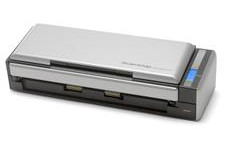
I chose the 1300i on the basis of the nice small form factor, and that SANE
reports
it having 'good' support with current SANE backends. I'd also been able
to find success stories of other linux users getting the similar S1300
working okay:
Here's my experience getting the S1300i up and running on CentOS 6.
I had the following packages already installed on my CentOS 6
workstation, so I didn't need to install any new software:
- sane-backends
- sane-backends-libs
- sane-frontends
- xsane
- gscan2pdf (from rpmforge)
- gocr (from rpmforge)
- tesseract (from my repo)
I plugged the S1300i in (via the dual USB cables instead of the power
supply - nice!), turned it on (by opening the top cover) and then ran
sudo sane-find-scanner. All good:
found USB scanner (vendor=0x04c5 [FUJITSU], product=0x128d [ScanSnap S1300i]) at libusb:001:013
# Your USB scanner was (probably) detected. It may or may not be supported by
# SANE. Try scanimage -L and read the backend's manpage.
Ran sudo scanimage -L - no scanner found.
I downloaded the S1300 firmware Luuk had provided in his post and
installed it into /usr/share/sane/epjitsu, and then updated
/etc/sane.d/epjitsu.conf to reference it:
# Fujitsu S1300i
firmware /usr/share/sane/epjitsu/1300_0C26.nal
usb 0x04c5 0x128d
Ran sudo scanimage -L - still no scanner found. Hmmm.
Rebooted into windows, downloaded the Fujitsu ScanSnap Manager package
and installed it. Grubbed around in C:/Windows and found the following 4
firmware packages:
Copied the firmware onto another box, and rebooted back into linux.
Copied the 4 new firmware files into /usr/share/sane/epjitsu and
updated /etc/sane.d/epjitsu.conf to try the 1300i firmware:
# Fujitsu S1300i
firmware /usr/share/sane/epjitsu/1300i_0D12.nal
usb 0x04c5 0x128d
Close and re-open the S1300i (i.e. restart, just to be sure), and
retried sudo scanimage -L. And lo, this time the scanner whirrs
briefly and ... victory!
$ sudo scanimage -L
device 'epjitsu:libusb:001:014' is a FUJITSU ScanSnap S1300i scanner
I start gscan2pdf to try some scanning goodness. Eeerk: "No devices
found". Hmmm. How about sudo gscan2pdf? Ahah, success - "FUJITSU
ScanSnap S1300i" shows up in the Device dropdown.
I exit, and google how to deal with the permissions problem. Looks like
the usb device gets created by udev as root:root 0664, and I need 'rw'
permissions for scanning:
$ ls -l /dev/bus/usb/001/014
crw-rw-r--. 1 root root 189, 13 Sep 20 20:50 /dev/bus/usb/001/014
The fix is to add a scanner group and local udev rule to use that
group when creating the device path:
# Add a scanner group (analagous to the existing lp, cdrom, tape, dialout groups)
$ sudo groupadd -r scanner
# Add myself to the scanner group
$ sudo useradd -aG scanner gavin
# Add a udev local rule for the S1300i
$ sudo vim /etc/udev/rules.d/99-local.rules
# Added:
# Fujitsu ScanSnap S1300i
ATTRS{idVendor}=="04c5", ATTRS{idProduct}=="128d", MODE="0664", GROUP="scanner", ENV{libsane_matched}="yes"
Then logout and log back in to pickup the change in groups, and close
and re-open the S1300i. If all is well, I'm now in the scanner group and
can control the scanner sans sudo:
# Check I'm in the scanner group now
$ id
uid=900(gavin) gid=100(users) groups=100(users),10(wheel),487(scanner)
# Check I can scanimage without sudo
$ scanimage -L
device 'epjitsu:libusb:001:016' is a FUJITSU ScanSnap S1300i scanner
# Confirm the permissions on the udev path (adjusted to match the new libusb path)
$ ls -l /dev/bus/usb/001/016
crw-rw-r--. 1 root scanner 189, 15 Sep 20 21:30 /dev/bus/usb/001/016
# Success!
Try gscan2pdf again, and this time it works fine without sudo!
And so far gscan2pdf 1.2.5 seems to work pretty nicely. It handles both
simplex and duplex scans, and both the cleanup phase (using unpaper)
and the OCR phase (with either gocr or tesseract) work without
problems. tesseract seems to perform markedly better than gocr so
far, as seems pretty typical.
So thus far I'm a pretty happy purchaser. On to a paperless
searchable future!
Mon 20 May 2013
Tags: dell, drac, linux, sysadmin
Note to self: this seems to be the most reliable way of checking whether
a Dell machine has a DRAC card installed:
sudo ipmitool sdr elist mcloc
If there is, you'll see some kind of DRAC card:
iDRAC6 | 00h | ok | 7.1 | Dynamic MC @ 20h
If there isn't, you'll see only a base management controller:
BMC | 00h | ok | 7.1 | Dynamic MC @ 20h
You need ipmi setup for this (if you haven't already):
# on RHEL/CentOS etc.
yum install OpenIPMI
service ipmi start
Fri 22 Mar 2013
Tags: text, linux
This has bitten me a couple of times now, and each time I've had to
re-google the utility and figure out the appropriate incantation. So
note to self: to subtract text files use comm(1).
Input files have to be sorted, but comm accepts a - argument for
stdin, so you can sort on the fly if you like.
I also find the -1 -2 -3 options pretty counter-intuitive, as they
indicate what you want to suppress, when I seem to want to indicate
what I want to select. But whatever.
Here's the cheatsheet:
FILE1=one.txt
FILE2=two.txt

# FILE1 - FILE2 (lines unique to FILE1)
comm -23 $FILE1 $FILE2

# FILE2 - FILE1 (lines unique to FILE2)
comm -13 $FILE1 $FILE2

# intersection (common lines)
comm -12 $FILE1 $FILE2

# xor (non-common lines, either FILE)
comm -3 $FILE1 $FILE2
# or without the column delimiters:
comm -3 --output-delimiter=' ' $FILE1 $FILE2 | sed 's/^ *//'

# union (all lines)
comm $FILE1 $FILE2
# or without the column delimiters:
comm --output-delimiter=' ' $FILE1 $FILE2 | sed 's/^ *//'
Fri 28 Oct 2011
Tags: ldap, openldap, rhel, centos, linux, sysadmin
Having spent too much of this week debugging problems around migrating
ldap servers from RHEL5 to RHEL6, here are some miscellaneous notes
to self:
The service is named ldap on RHEL5, and slapd on RHEL6 e.g.
you do service ldap start on RHEL5, but service slapd start
on RHEL6
On RHEL6, you want all of the following packages installed on your clients:
yum install openldap-clients pam_ldap nss-pam-ldapd
This seems to be the magic incantation that works for me (with real SSL
certificates, though):
authconfig --enableldap --enableldapauth \
  --ldapserver ldap.example.com \
  --ldapbasedn="dc=example,dc=com" \
  --update
Be aware that there are multiple ldap configuration files involved now.
All of the following end up with ldap config entries in them and need to
be checked:
- /etc/openldap/ldap.conf
- /etc/pam_ldap.conf
- /etc/nslcd.conf
- /etc/sssd/sssd.conf
Note too that /etc/openldap/ldap.conf uses uppercased directives (e.g. URI)
that get lowercased in the other files (URI -> uri). Additionally, some
directives are confusingly renamed as well - e.g. TLA_CACERT in
/etc/openldap/ldap.conf becomes tla_cacertfile in most of the others.
:-(
If you want to do SSL or TLS, you should know that the default behaviour
is for ldap clients to verify certificates, and give misleading bind errors
if they can't validate them. This means:
if you're using self-signed certificates, add TLS_REQCERT allow to
/etc/openldap/ldap.conf on your clients, which means allow certificates
the clients can't validate
if you're using CA-signed certificates, and want to verify them, add
your CA PEM certificate to a directory of your choice (e.g.
/etc/openldap/certs, or /etc/pki/tls/certs, for instance), and point
to it using TLA_CACERT in /etc/openldap/ldap.conf, and
tla_cacertfile in /etc/ldap.conf.
RHEL6 uses a new-fangled /etc/openldap/slapd.d directory for the old
/etc/openldap/slapd.conf config data, and the
RHEL6 Migration Guide
tells you to how to convert from one to the other. But if you simply
rename the default slapd.d directory, slapd will use the old-style
slapd.conf file quite happily, which is much easier to read/modify/debug,
at least while you're getting things working.
If you run into problems on the server, there are lots of helpful utilities
included with the openldap-servers package. Check out the manpages for
slaptest(8), slapcat(8), slapacl(8), slapadd(8), etc.
Further reading:
Tue 18 Oct 2011
Tags: linux, sysadmin, centos, rhel
rpm-find-changes is a little script I wrote a while ago for rpm-based
systems (RedHat, CentOS, Mandriva, etc.). It finds files in a filesystem
tree that are not owned by any rpm package (orphans), or are modified
from the version distributed with their rpm. In other words, any file
that has been introduced or changed from it's distributed version.
It's intended to help identify candidates for backup, or just for
tracking interesting changes. I run it nightly on /etc on most of my
machines, producing a list of files that I copy off the machine (using
another tool, which I'll blog about later) and store in a git
repository.
I've also used it for tracking changes to critical configuration trees
across multiple machines, to make sure everything is kept in sync, and
to be able to track changes over time.
Available on github:
https://github.com/gavincarr/rpm-find-changes
Fri 14 Jan 2011
Tags: linux, rhel6, centos6, gdm
Update: ilaiho has provided a better solution in the comments,
which is to install the xorg-x11-xinit-session package, which adds
a "User script" session option. This will invoke your (executable)
~/.xsession or ~/.Xclients configs, if selected, and works well,
so I'd recommend you go that route instead of using this patch now.
The GDM Greeter in RHEL6 seems to have lost the ability to select
'session types' (or window managers), which apparently means you're
stuck using Gnome, even if you have other better options installed.
One workaround is to install KDM instead, and set DISPLAYMANAGER=KDE
in your /etc/sysconfig/desktop config, as KDM does still support
selectable session types.
Since I've become a big fan of
tiling window managers
in general, and ion
in particular, this was pretty annoying, so I wasted a few hours
today working through the /etc/X11 scripts and figuring out how
they hung together on RHEL6.
So for any other gnome-haters out there who don't want to have to
go to KDM, here's a patch to /etc/X11/xinit/Xsession that ignores
the default 'gnome-session' set by GDM, which allows proper window
manager selection either by user .xsession or .Xclients files,
or by the /etc/sysconfig/desktop DISPLAY setting.
diff --git a/xinit/Xsession b/xinit/Xsession
index e12e0ee..ab94d28 100755
--- a/xinit/Xsession
+++ b/xinit/Xsession
@@ -30,6 +30,14 @@ SWITCHDESKPATH=/usr/share/switchdesk
 # Xsession and xinitrc scripts which has been factored out to avoid duplication
 . /etc/X11/xinit/xinitrc-common

+# RHEL6 GDM doesn't seem to support selectable sessions, and always requests a
+# gnome-session. So we unset this default here, to allow things like user
+# .xsession or .Xclients files to be checked, and /etc/sysconfig/desktop
+# settings (via /etc/X11/xinit/Xclients) honoured.
+if [ -n "$GDMSESSION" -a $# -eq 1 -a "$1" = gnome-session ]; then
+  shift
+fi
+
 # This Xsession.d implementation, is intended to obsolte and replace the
 # various mechanisms present in the 'case' statement which follows, and to
 # eventually be able to easily remove all hard coded window manager specific
Apply as root:
cd /etc/X11
patch -p1 < /tmp/xsession.patch
Sun 09 Jan 2011
Tags: linux, sysadmin
Here's what I use to take a quick inventory of a machine before a rebuild,
both to act as a reference during the rebuild itself, and in case something
goes pear-shaped. The whole chunk after script up to exit is
cut-and-pastable.
# as root, where you want your inventory file
script $(hostname).inventory
export PS1='\h:\w\$ '               # reset prompt to avoid ctrl chars
fdisk -l /dev/sd?                   # list partition tables
cat /proc/mdstat                    # list raid devices
pvs                                 # list lvm stuff
vgs
lvs
df -h                               # list mounts
ip addr                             # list network interfaces
ip route                            # list network routes
cat /etc/resolv.conf                # show resolv.conf
exit

# Cleanup control characters in the inventory
perl -i -pe 's/\r//g; s/\033\]\d+;//g; s/\033\[\d+m//g; s/\007/\//g' \
  $(hostname).inventory

# And then copy it somewhere else in case of problems ;-)
scp $(hostname).inventory somewhere:
Anything else useful I've missed?
Mon 22 Mar 2010
Tags: dell, omsa, centos, rhel, linux, sysadmin
Following on from my IPMI explorations, here's the next
chapter in my getting-down-and-dirty-with-dell-hardware-on-linux adventures.
This time I'm setting up Dell's
OpenManage Server Administrator
software, primarily in order to explore being able to configure bios settings
from within the OS. As before, I'm running CentOS 5, but OMSA supports any of
RHEL4, RHEL5, SLES9, and SLES10, and various versions of Fedora Core and
OpenSUSE.
Here's what I did to get up and running:
# Configure the Dell OMSA repository
wget -O bootstrap.sh http://linux.dell.com/repo/hardware/latest/bootstrap.cgi
# Review the script to make sure you trust it, and then run it
sh bootstrap.sh
# OR, for CentOS5/RHEL5 x86_64 you can just install the following:
rpm -Uvh http://linux.dell.com/repo/hardware/latest/platform_independent/rh50_64/prereq/\
dell-omsa-repository-2-5.noarch.rpm

# Install base version of OMSA, without gui (install srvadmin-all for more)
yum install srvadmin-base

# One of daemons requires /usr/bin/lockfile, so make sure you've got procmail installed
yum install procmail

# If you're running an x86_64 OS, there are a couple of additional 32-bit
#   libraries you need that aren't dependencies in the RPMs
yum install compat-libstdc++-33-3.2.3-61.i386 pam.i386

# Start OMSA daemons
for i in instsvcdrv dataeng dsm_om_shrsvc; do service $i start; done

# Finally, you can update your path by doing logout/login, or just run:
. /etc/profile.d/srvadmin-path.sh
Now to check whether you're actually functional you can try a few of the
following (as root):
omconfig about
omreport about
omreport system -?
omreport chassis -?
omreport is the OMSA CLI reporting/query tool, and omconfig is the
equivalent update tool. The main documentation for the current version of
OMSA is here.
I found the CLI User's Guide
the most useful.
Here's a sampler of interesting things to try:
# Report system overview
omreport chassis

# Report system summary info (OS, CPUs, memory, PCIe slots, DRAC cards, NICs)
omreport system summary

# Report bios settings
omreport chassis biossetup

# Fan info
omreport chassis fans

# Temperature info
omreport chassis temps

# CPU info
omreport chassis processors

# Memory and memory slot info
omreport chassis memory

# Power supply info
omreport chassis pwrsupplies

# Detailed PCIe slot info
omreport chassis slots

# DRAC card info
omreport chassis remoteaccess
omconfig allows setting object attributes using a key=value syntax, which
can get reasonably complex. See the CLI User's Guide above for details, but
here are some examples of messing with various bios settings:
# See available attributes and settings
omconfig chassis biossetup -?

# Turn the AC Power Recovery setting to On
omconfig chassis biossetup attribute=acpwrrecovery setting=on

# Change the serial communications setting (on with serial redirection via)
omconfig chassis biossetup attribute=serialcom setting=com1
omconfig chassis biossetup attribute=serialcom setting=com2

# Change the external serial connector
omconfig chassis biossetup attribute=extserial setting=com1
omconfig chassis biossetup attribute=extserial setting=rad

# Change the Console Redirect After Boot (crab) setting
omconfig chassis biossetup attribute=crab setting=enabled
omconfig chassis biossetup attribute=crab setting=disabled

# Change NIC settings (turn on PXE on NIC1)
omconfig chassis biossetup attribute=nic1 setting=enabledwithpxe
Finally, there are some interesting formatting options available to both
omreport, for use in scripting e.g.
# Custom delimiter format (default semicolon)
omreport chassis -fmt cdv

# XML format
omreport chassis -fmt xml

# To change the default cdv delimiter
omconfig preferences cdvformat -?
omconfig preferences cdvformat delimiter=pipe
Thu 11 Mar 2010
Tags: linux, centos, rhel, ipmi, dell
Spent a few days deep in the bowels of a couple of datacentres last week,
and realised I didn't know enough about Dell's DRAC base management
controllers to use them properly. In particular, I didn't know how to
mess with the drac settings from within the OS. So spent some of today
researching that.
Turns out there are a couple of routes to do this. You can use the Dell
native tools (e.g. racadm) included in Dell's
OMSA product, or you can use
vendor-neutral IPMI,
which is well-supported by Dell DRACs. I went with the latter as it's
more cross-platform, and the tools come native with CentOS, instead of
having to setup Dell's OMSA repositories. The Dell-native tools may give
you more functionality, but for what I wanted to do IPMI seems to work
just fine.
So installation is just:
yum install OpenIPMI OpenIPMI-tools
chkconfig ipmi on
service ipmi start
and then from the local machine you can use ipmitool to access and
manipulate all kinds of useful stuff:
# IPMI commands
ipmitool help
man ipmitool

# To check firmware version
ipmitool mc info
# To reset the management controller
ipmitool mc reset [ warm | cold ]

# Show field-replaceable-unit details
ipmitool fru print

# Show sensor output
ipmitool sdr list
ipmitool sdr type list
ipmitool sdr type Temperature
ipmitool sdr type Fan
ipmitool sdr type 'Power Supply'

# Chassis commands
ipmitool chassis status
ipmitool chassis identify [<interval>]   # turn on front panel identify light (default 15s)
ipmitool [chassis] power soft            # initiate a soft-shutdown via acpi
ipmitool [chassis] power cycle           # issue a hard power off, wait 1s, power on
ipmitool [chassis] power off             # issue a hard power off
ipmitool [chassis] power on              # issue a hard power on
ipmitool [chassis] power reset           # issue a hard reset

# Modify boot device for next reboot
ipmitool chassis bootdev pxe
ipmitool chassis bootdev cdrom
ipmitool chassis bootdev bios

# Logging
ipmitool sel info
ipmitool sel list
ipmitool sel elist                       # extended list (see manpage)
ipmitool sel clear
For remote access, you need to setup user and network settings, either at boot time
on the DRAC card itself, or from the OS via ipmitool:
# Display/reset password for default root user (userid '2')
ipmitool user list 1
ipmitool user set password 2 <new_password>

# Display/configure lan settings
ipmitool lan print 1
ipmitool lan set 1 ipsrc [ static | dhcp ]
ipmitool lan set 1 ipaddr 192.168.1.101
ipmitool lan set 1 netmask 255.255.255.0
ipmitool lan set 1 defgw ipaddr 192.168.1.254
Once this is configured you should be able to connect using the 'lan' interface
to ipmitool, like this:
ipmitool -I lan -U root -H 192.168.1.101 chassis status
which will prompt you for your ipmi root password, or you can do the following:
echo <new_password> > ~/.racpasswd
chmod 600 ~/.racpasswd
and then use that password file instead of manually entering it each time:
ipmitool -I lan -U root -f ~/.racpasswd -H 192.168.1.101 chassis status
I'm using an 'ipmi' alias that looks like this:
alias ipmi='ipmitool -I lan -U root -f ~/.racpasswd -H'

# which then allows you to do the much shorter:
ipmi 192.168.1.101 chassis status
# OR
ipmi <hostname> chassis status
Finally, if you configure serial console redirection in the bios as follows:
Serial Communication -> Serial Communication:       On with Console Redirection via COM2
Serial Communication -> External Serial Connector:  COM2
Serial Communication -> Redirection After Boot:     Disabled
then you can setup standard serial access in grub.conf and inittab on com2/ttyS1
and get serial console access via IPMI serial-over-lan using the 'lanplus' interface:
ipmitool -I lanplus -U root -f ~/.racpasswd -H 192.168.1.101 sol activate
which I typically use via a shell function:
# ipmi serial-over-lan function
isol() {
   if [ -n "$1" ]; then
       ipmitool -I lanplus -U root -f ~/.racpasswd -H $1 sol activate
   else
       echo "usage: sol <sol_ip>"
   fi
}

# used like:
isol 192.168.1.101
isol <hostname>
Further reading:
Fri 26 Feb 2010
Tags: linux, rpm, centos
Mock is a Fedora project that allows
you to build RPM packages within a chroot environment, allowing you to build
packages for other systems than the one you're running on (e.g. building CentOS 4
32-bit RPMs on a CentOS 5 64-bit host), and ensuring that all the required build
dependencies are specified correctly in the RPM spec file.
It's also pretty under-documented, so these are my notes on things I've figured out
over the last week setting up a decent mock environment on CentOS 5.
First, I'm using mock 1.0.2 from the EPEL repository, rather than older 0.6.13
available from CentOS Extras. There are apparently backward-compatibility problems
with versions of mock > 0.6, but as I'm mostly building C5 packages I decided to go
with the newer version. So installation is just:
# Install mock and python-ctypes packages (the latter for better setarch support)
$ sudo yum --enablerepo=epel install mock python-ctypes

# Add yourself to the 'mock' group that will have now been created
$ sudo usermod -G mock gavin
The mock package creates an /etc/mock directory with configs for various OS
versions (mostly Fedoras). The first thing you want to tweak there is the
site-defaults.cfg file which sets up various defaults for all your builds. Mine now
looks like this:
# /etc/mock/site-defaults.cfg

# Set this to true if you've installed python-ctypes
config_opts['internal_setarch'] = True

# Turn off ccache since it was causing errors I haven't bothered debugging
config_opts['plugin_conf']['ccache_enable'] = False

# (Optional) Fake the build hostname to report
config_opts['use_host_resolv'] = False
config_opts['files']['etc/hosts'] = """
127.0.0.1 buildbox.openfusion.com.au nox.openfusion.com.au localhost
"""
config_opts['files']['etc/resolv.conf'] = """
nameserver 127.0.0.1
"""

# Setup various rpm macros to use
config_opts['macros']['%packager'] = 'Gavin Carr <gavin@openfusion.com.au>'
config_opts['macros']['%debug_package'] = '%{nil}'
You can use the epel-5-{i386,x86_64}.cfg configs as-is if you like; I copied them
to centos-5-{i386,x86_64}.cfg versions and removed the epel 'extras', 'testing',
and 'local' repositories from the yum.conf section, since I typically want to build
using only 'core' and 'update' packages.
You can then run a test by doing:
# e.g. initialise a centos-5-i386 chroot environment
$ CONFIG=centos-5-i386
$ mock -r $CONFIG --init
which will setup an initial chroot environment using the given config. If that
seemed to work (you weren't inundated with error messages), you can try a build:
# Rebuild the given source RPM within the chroot environment
# usage: mock -r <mock_config> --rebuild /path/to/SRPM e.g.
$ mock -r $CONFIG --rebuild ~/rpmbuild/SRPMS/clix-0.3.4-1.of.src.rpm
If the build succeeds, it drops your packages into the /var/lib/mock/$CONFIG/result
directory:
$ ls -1 /var/lib/mock/$CONFIG/result
build.log
clix-0.3.4-1.of.noarch.rpm
clix-0.3.4-1.of.src.rpm
root.log
state.log
If it fails, you can check mock output, the *.log files above for more info, and/or
rerun mock with the -v flag for more verbose messaging.
A couple of final notes:
the chroot environments are cached, but rebuilding them and checking for updates
can be pretty network intensive, so you might want to consider setting up a local
repository to pull from. mrepo (available
from rpmforge) is pretty good for that.
there don't seem to be any hooks in mock to allow you to sign packages you've
built, so if you do want signed packages you need to sign them afterwards via a
rpm --resign $RPMS.
Fri 01 Jan 2010
Tags: linux, anycast, dns, sysadmin
(Okay, brand new year - must be time to get back on the blogging wagon ...)
Linux Journal recently had a really good article
by Philip Martin on Anycast DNS. It's
well worth a read - I just want to point it out and record a cutdown version of
how I've been setting it up recently.
As the super-quick intro, anycast is the idea of providing a network service
at multiple points in a network, and then routing requests to the 'nearest'
service provider for any particular client. There's a one-to-many relationship
between an ip address and the hosts that are providing services on that address.
In the LJ article above, this means you provide a service on a /32 host address,
and then use a(n) (interior) dynamic routing protocol to advertise that address
to your internal routers. If you're a non-cisco linux shop, that means using
quagga/ospf.
The classic anycast service is dns, since it's stateless and benefits from the
high availability and low latency benefits of a distributed anycast service.
So here's my quick-and-dirty notes on setting up an anycast dns server on
CentOS/RHEL using dnsmasq for dns, and quagga zebra/ospfd for the routing.
First, setup your anycast ip address (e.g. 192.168.255.1/32) on a random
virtual loopback interface e.g. lo:0. On CentOS/RHEL, this means you want
to setup a /etc/sysconfig/network-scripts/ifcfg-lo:0 file containing:
DEVICE=lo:0
IPADDR=192.168.255.1
NETMASK=255.255.255.255
ONBOOT=yes
Setup your dns server to listen to (at least) your anycast dns interface.
With dnsmasq, I use an /etc/dnsmasq.conf config like:
interface=lo:0
domain=example.com
local=/example.com/
resolv.conf=/etc/resolv.conf.upstream
expand-hosts
domain-needed
bogus-priv
Use quagga's zebra/ospfd to advertise this host address to your internal
routers. I use a completely vanilla zebra.conf, and an /etc/quagga/ospfd.conf
config like:
hostname myhost
password mypassword
log syslog
!
router ospf
  ! Local segments (adjust for your network config and ospf areas)
  network 192.168.1.0/24 area 0
  ! Anycast address redistribution
  redistribute connected metric-type 1
  distribute-list ANYCAST out connected
!
access-list ANYCAST permit 192.168.255.1/32
That's it. Now (as root) start everything up:
ifup lo:0
for s in dnsmasq zebra ospfd; do
  service $s start
  chkconfig $s on
done
tail -50f /var/log/messages
And then check on your router that the anycast dns address is getting advertised
and picked up by your router. If you're using cisco, you're probably know how to
do that; if you're using linux and quagga, the useful vtysh commands are:
show ip ospf interface <interface>
show ip ospf neighbor
show ip ospf database
show ip ospf route
show ip route
Sat 19 Sep 2009
Tags: linux, skype, voip, centos
The new skype 2.1 beta
(woohoo - Linux users are now only 2.0 versions behind Windows, way to go Skype!)
doesn't come with a CentOS rpm, unlike earlier versions. And the Fedora packages
that are available are for FC9 and FC10, which are too recent to work on a stock
RHEL/CentOS 5 system.
So here's how I got skype working nicely on CentOS 5.3, using the static binary
tarball.
Note that while it appears skype has finally been ported to 64-bit architectures, the
only current 64-bit builds are for Ubuntu 8.10+, so installing on a 64-bit CentOS
box requires 32-bit libraries to be installed (sigh). Otherwise you get the error:
skype: /lib/ld-linux.so.2: bad ELF interpreter: No such file or directory.
# the available generic skype binaries are 32-bit, so if you're running a 64-bit
# system you need to make sure you have various 32-bit libraries installed
yum install glib2.i386 qt4.i386 zlib.i386 alsa-lib.i386 libX11.i386 \
  libXv.i386 libXScrnSaver.i386

# installing to /opt (tweak to taste)
cd /tmp
wget http://www.skype.com/go/getskype-linux-beta-static
cd /opt
tar jxvf /tmp/skype_static-2.1.0.47.tar.bz2
ln -s skype_static-2.1.0.47 skype

# Setup some symlinks (the first is required for sounds to work, the second is optional)
ln -s /opt/skype /usr/share/skype
ln -s /opt/skype/skype /usr/bin/skype
You don't seem to need pulseaudio installed (at least with the static binary - I assume it's
linked in statically already).
Tangentially, if you have any video problems with your webcam, you might want to check out
the updated video drivers available in the
kmod-video4linux package from the shiny new
ELRepo.org. I'm using their updated uvcvideo module with a Logitech
QuickCam Pro 9000 and Genius Slim 1322AF, and both are working well.